Checking Whether W2's WAF Is Blocking Crawlers
Navigation
- Search OS
- W2
Checking Whether W2's WAF Is Blocking Crawlers
- Category
- Guides
- Read Time
- 6 min read
- Topic
- Japan EC platform guides for search and AI search
On a self-operated platform like W2, the WAF, bot protection, or rate limiting can block search engine and AI crawlers by accident. This article lays out the steps for checking whether crawlers are blocked using Search Console and server logs, how to tell legitimate crawlers apart, and how to decide whether to allow or refuse AI crawlers.
- Source
- searchos.io/en/blog
- Copyright
- © 2026 Search OS
On a site run on W2, the indexed count suddenly dropped one week. Nothing changed on the site side, but around that time the WAF settings were changed as part of a security hardening. Shops operating on their own platform raise this.
The first suspect is the WAF or bot protection. A crawler is a program that reads through pages. The WAF may be judging search engine and AI crawlers as hostile bots. A crawler judged that way is blocked outright. Crawlers send many requests in a short time, so they're prone to tripping rate limits and behavior detection. When blocked, Googlebot receives errors (403, 429, 5xx). The indexed count falls and rankings drop. The site's HTML hasn't changed at all, so the cause stays hard to notice.
This article lays out the steps for confirming a block and how to tell legitimate crawlers apart. It also covers the policy for allowing or refusing AI crawlers and the operating rules for changing settings.
Conclusion: Check Search Console crawl stats and server log response codes, and put legitimate crawlers on the allow list
Check | Where to look | Signs of blocking |
|---|---|---|
Crawl responses | Search Console Settings → Crawl stats | Share of 403, 429, and 5xx rising |
Fetch success | Search Console URL Inspection → Live test | "Could not be fetched" |
Server logs | WAF and web server logs | 403 and 429 against User-Agents such as Googlebot and GPTBot |
WAF block logs | WAF admin console | Legitimate crawler IPs appear among blocked targets |
Metadata
- Search OS
- Guide 01
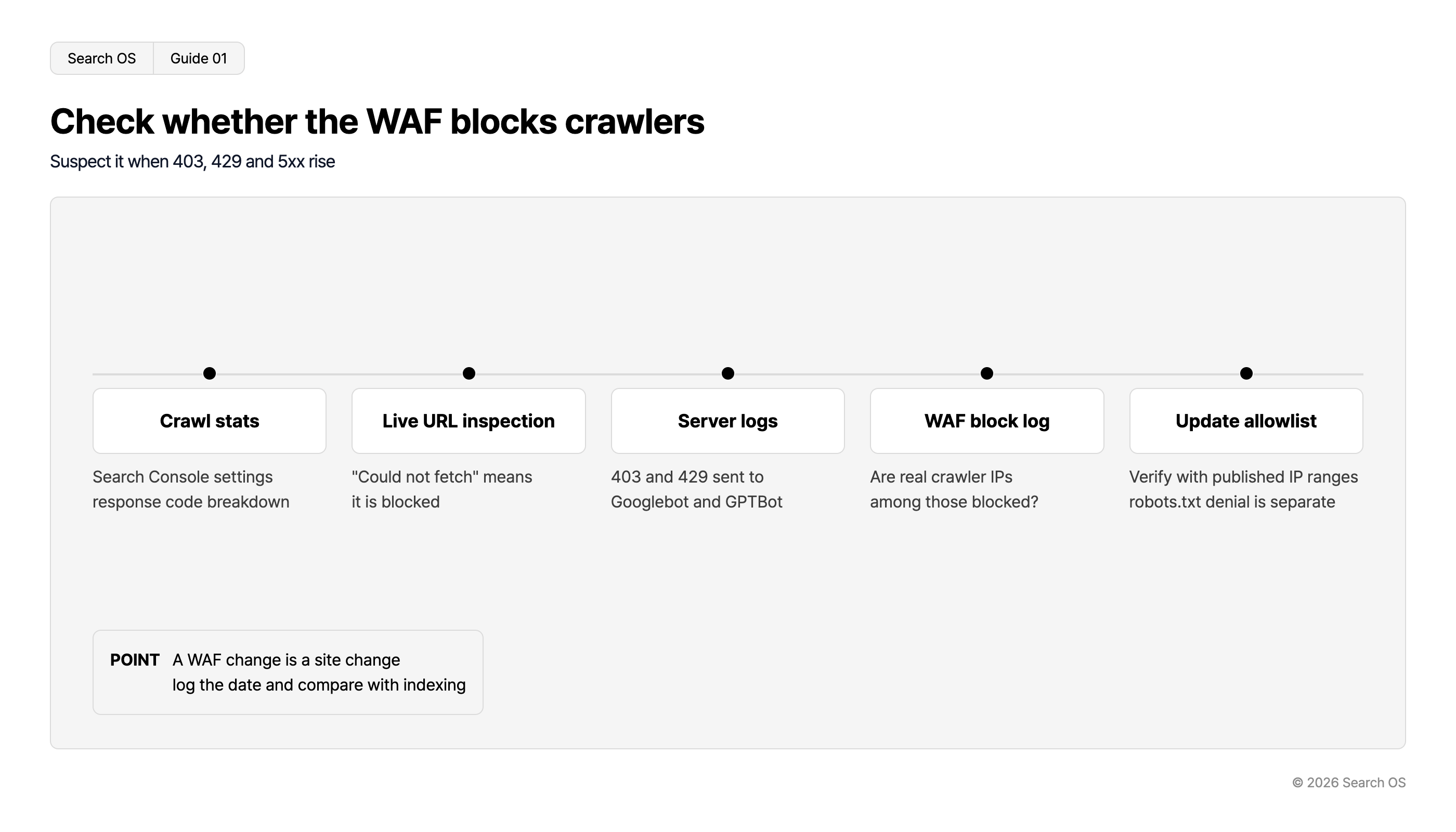
Check whether the WAF blocks crawlers
Suspect it when 403, 429 and 5xx rise
| Step | Description |
|---|---|
| Crawl stats | Search Console settings response code breakdown |
| Live URL inspection | "Could not fetch" means it is blocked |
| Server logs | 403 and 429 sent to Googlebot and GPTBot |
| WAF block log | Are real crawler IPs among those blocked? |
| Update allowlist | Verify with published IP ranges robots.txt denial is separate |
- POINT
- A WAF change is a site change log the date and compare with indexing
© 2026 Search OS
Key idea: A WAF settings change is a site change. Even if you didn't touch the HTML, the site as search engines see it has changed. Record the date of each settings change so you can compare it against changes in indexing. Start by writing down the most recent date the WAF was changed.
Step 1: Check in Search Console
Open Settings → Crawl stats
Check whether "Host status" shows a problem
In the "By response" breakdown, identify when 403, 429, and 5xx rose
Run a live test on core pages in URL Inspection and confirm they can be fetched
If the live test can't fetch, Googlebot is blocked at that point. Run your core pages through the live test.
Step 2: Check server logs
Filter the WAF or web server access log on the following conditions.
User-Agent contains
Googlebot,bingbot,GPTBot,ClaudeBot,PerplexityBot, or similarResponse code is 403, 429, or 5xx
If there are hits, use the WAF log to pin down which rule blocked them. First, check the response codes sent to Googlebot in the log.
Step 3: Tell legitimate crawlers apart
User-Agent can be spoofed. Combine the allow list with IP verification.
Crawler | Verification method |
|---|---|
Googlebot | Match against Google's published IP address ranges (JSON), or confirm googlebot.com by reverse DNS |
bingbot | Match against Bing's published IP ranges |
GPTBot and OAI-SearchBot | Match against OpenAI's published IP ranges |
ClaudeBot | Match against the information Anthropic publishes |
PerplexityBot | Match against Perplexity's published IP ranges |
Each company's published IPs get updated. Review the allow list regularly too. Compare Googlebot's published IP ranges against your allow list.
Allow or refuse AI crawlers
This is a matter of policy, not technology.
Policy | Meaning | Setting |
|---|---|---|
Allow both search engines and AI | Aim for citations in AI search | All legitimate crawlers on the allow list |
Allow search engines, refuse AI training, allow AI search | Want citations but not use for training | Refuse GPTBot (training), allow OAI-SearchBot (search), and so on |
Allow search engines only | Don't need to appear in AI search | Refuse AI crawlers in robots.txt |
Navigation
- Search OS
- Guide 02
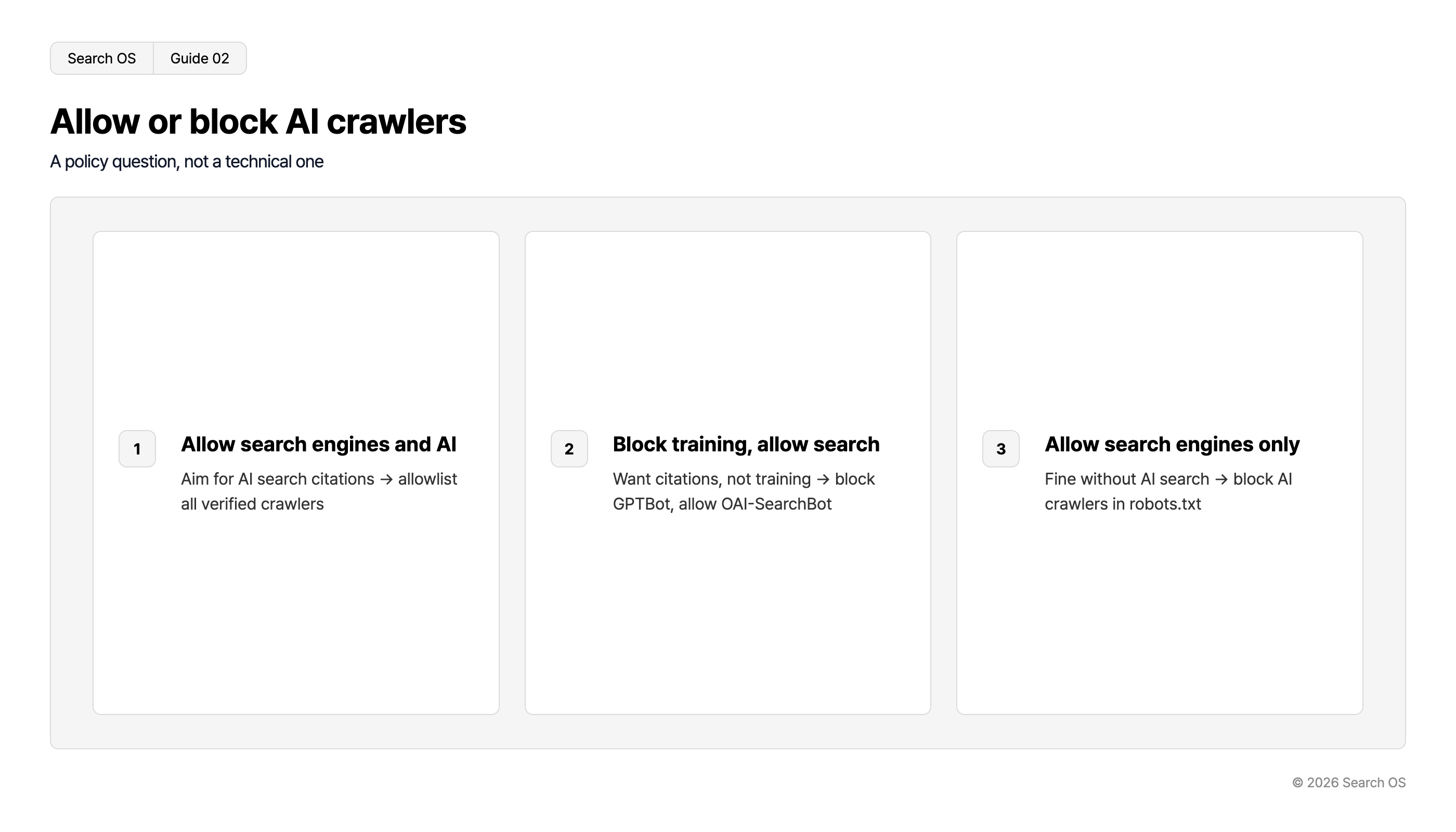
Allow or block AI crawlers
A policy question, not a technical one
| number | title | description |
|---|---|---|
| 1 | Allow search engines and AI | Aim for AI search citations → allowlist all verified crawlers |
| 2 | Block training, allow search | Want citations, not training → block GPTBot, allow OAI-SearchBot |
| 3 | Allow search engines only | Fine without AI search → block AI crawlers in robots.txt |
© 2026 Search OS
If you refuse, the basic rule is to do it in robots.txt, not the WAF. Block with the WAF and the crawler records it as an error. That can affect how the site's health is assessed. A refusal in robots.txt is treated as intentional. Confirm that the bots you want to refuse are listed in robots.txt.
Operating rules for settings changes
Record the date and content of every change to WAF, bot protection, and rate limiting settings
For a week after a change, check response codes in Search Console crawl stats
Before updating the allow list, fetch each company's latest IP ranges
Set the rate limit threshold no lower than Googlebot's normal crawl frequency (check it in crawl stats)
Operation after the check
The security team changes WAF settings and the SEO owner doesn't know. It's a common situation. Even if one check finds no problem, the next settings change causes it again. New AI crawlers keep appearing too, so the assumptions behind the allow list keep shifting.
Search OS is a layer that supports self-operated platforms such as W2. From bot logs, it continuously monitors response codes for search engine and AI crawlers. It finds blocks as they occur, new crawlers as they appear, and gaps between the allow list and reality, and organizes them into items to fix. It isn't the layer that configures the WAF. It's a layer that keeps watching what happens to crawlers as a result of the configuration. Start by making it a rule that whoever changes the WAF tells the SEO owner.
Frequently asked questions
Does even a temporary block affect indexing?
A block of a few days recovers once lifted. If it lasts weeks, pages start dropping out of the index. Recovery then takes time.
Is there bot protection on the CDN side too?
CDNs have bot protection as well. Sometimes it's blocking in tandem with the WAF. Look at the CDN logs too.
Isn't tripping the rate limit a sign that Googlebot crawls too much?
Search Console used to have a setting to lower Googlebot's crawl rate. Now there's only automatic adjustment. If the site is slow or returns many errors, crawling decreases on its own. Stabilizing the site's responses is more reliable than refusing through rate limits.
Related reading
References
Google Search Central: Verifying Googlebot and other Google crawlers
Google Search Central: Crawl Stats report
Google Search Central: Overview of Google crawlers and fetchers
OpenAI: Overview of OpenAI Crawlers