How to Submit a Color Me Shop Sitemap
- Search OS
- Color Me Shop
How to Submit a Color Me Shop Sitemap
- Category
- Guides
- Read Time
- 5 min read
- Description
- Japan EC platform guides for search and AI search
A Color Me Shop sitemap starts with confirming where it lives and what it contains. This article walks through submitting it to Search Console and the metrics to watch afterward. It also covers how free pages and custom domains relate to the sitemap.
- URL
- searchos.io/en/blog
- Copyright
- © 2026 Search OS
When someone asks you to submit the sitemap to Search Console, you may get stuck on where the file lives in Color Me Shop. Whether it is generated automatically is also hard to tell just by opening the admin panel.
A sitemap is the list of URLs you hand to search engines. Check the admin panel or the help pages for whether one is generated automatically and where it sits. This article doesn't assert the URL. Confirm it on your own shop.
This article sorts out how to confirm the sitemap's location and contents. It also covers the Search Console submission steps and how to read indexing status afterward.
Conclusion: Confirm the location, submit it, and cover the "pages not included" separately
Stage | What to do | How to check |
|---|---|---|
1 | Confirm whether a sitemap is auto-generated and its URL | Admin panel, help pages, or open /sitemap.xml directly |
2 | Confirm which page types are included | Open the sitemap contents |
3 | Submit to Search Console | Sitemaps report |
4 | Check indexing status | Pages report |
5 | Cover pages not included with internal links | Paths to free pages and categories |
Metadata
- Search OS
- Guide 01
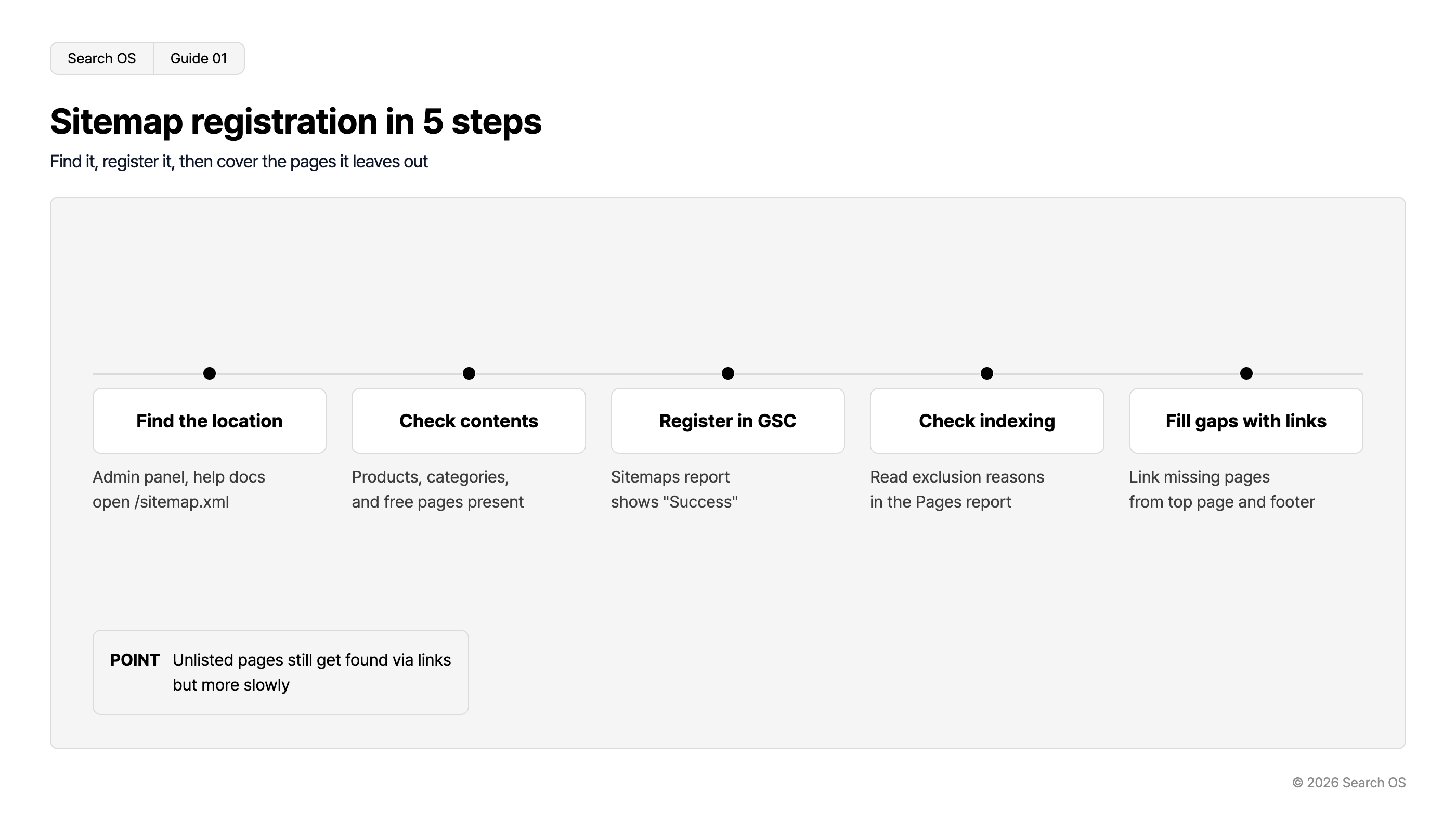
Sitemap registration in 5 steps
Find it, register it, then cover the pages it leaves out
| Step | Action | Details |
|---|---|---|
| 1 | Find the location | Admin panel, help docs open /sitemap.xml |
| 2 | Check contents | Products, categories, and free pages present |
| 3 | Register in GSC | Sitemaps report shows "Success" |
| 4 | Check indexing | Read exclusion reasons in the Pages report |
| 5 | Fill gaps with links | Link missing pages from top page and footer |
- POINT
- Unlisted pages still get found via links but more slowly
© 2026 Search OS
Key idea: A sitemap is the list of URLs you want seen. A free page missing from it can still be discovered through internal links, but discovery is slower by that much. Start by confirming which pages are not on the list.
Step 1: Confirm where the sitemap is
Knowing your product page URLs doesn't tell you where the sitemap is. Look in the following order.
Search for "sitemap" in the admin panel's SEO-related settings or in the help pages
Try opening
https://(your-shop-domain)/sitemap.xmlin a browserIf it displays, that URL is what you submit. If it doesn't, either it isn't auto-generated or it lives at a different URL
If you use a custom domain, check the URL on that domain. Even if it opens on both domains, you submit only the canonical side. The canonical tag is the marker that tells search engines which URL is the primary one. Confirm which domain the canonical points to first.
Step 2: Confirm what is and isn't included
Open the file and look at which URLs are listed. Products may be there while the "how to choose" free pages are missing.
Page type | Included? | What to do if not included |
|---|---|---|
Product pages | Check | Usually included |
Category pages | Check | If missing, cover with links from the top page |
Free pages | Check | Sometimes missing. Link from the top page and footer |
Blog (external integration) | Usually not included | Submit the blog's own sitemap separately |
Discontinued products | Must not be included | If included, confirm they return 404/410 |
Free pages are the entry points that bring search visitors in through articles. Place internal links to any free page that isn't in the sitemap.
Step 3: Submit to Search Console
Select your shop's property in Search Console. If you use a custom domain, select that domain.
Open "Sitemaps" in the left menu
Enter the sitemap URL (the part after the domain) and submit
Confirm the status shows "Success". If it shows an error, recheck the URL you submitted.
Step 4: Metrics to watch after submitting
Metric | Where to look | Judgment |
|---|---|---|
Discovered URLs | Sitemaps report | Not far off from the product count |
Indexed URLs | Pages report | Not extremely low relative to discovered URLs |
"Crawled - currently not indexed" | Pages report | If high, content is thin (e.g. image-only product pages) |
"Discovered - currently not indexed" | Pages report | If high, crawling isn't keeping up |
Navigation
- Search OS
- Guide 02
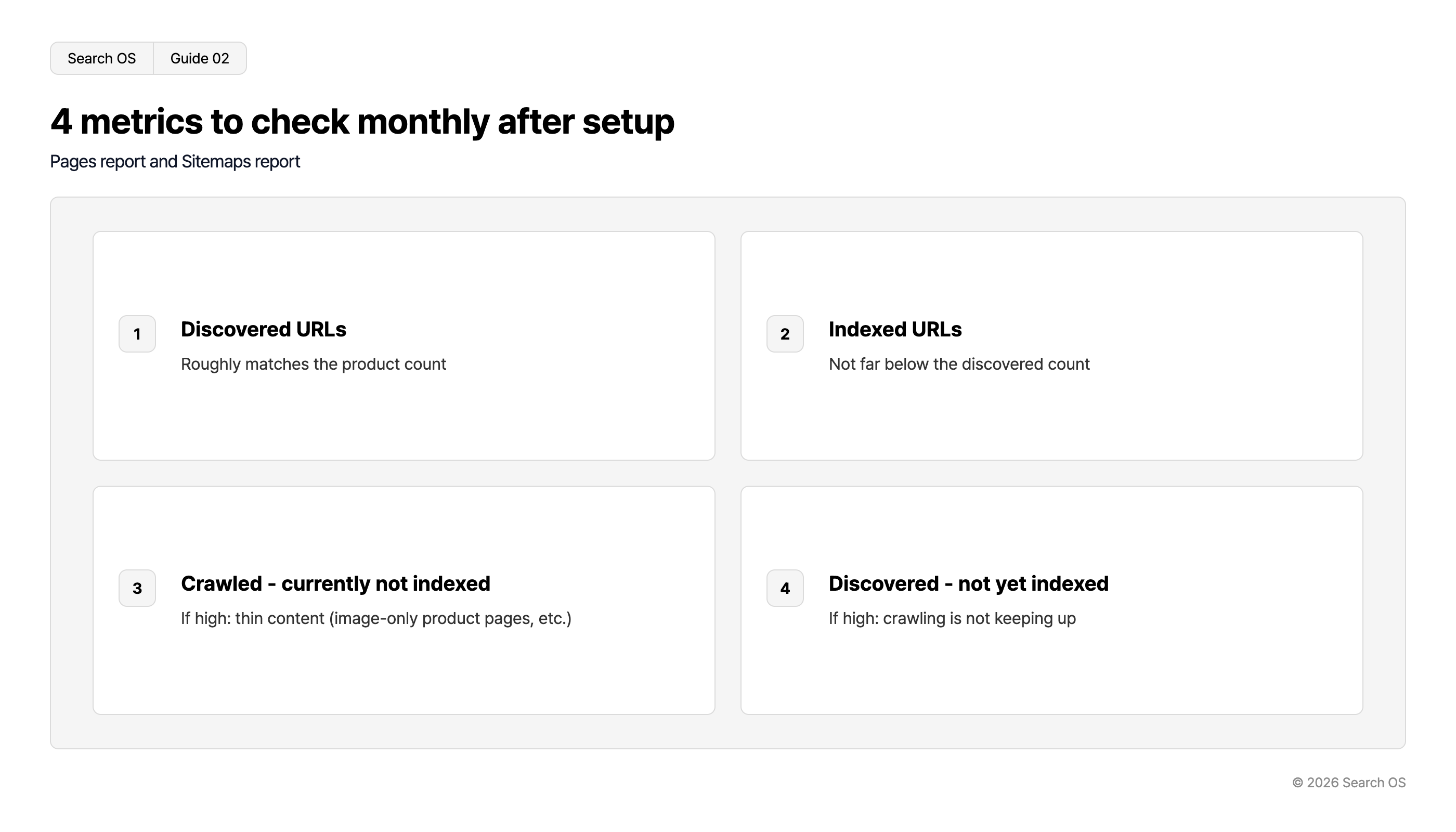
4 metrics to check monthly after setup
Pages report and Sitemaps report
| Number | Metric | Description |
|---|---|---|
| 1 | Discovered URLs | Roughly matches the product count |
| 2 | Indexed URLs | Not far below the discovered count |
| 3 | Crawled - currently not indexed | If high: thin content (image-only product pages, etc.) |
| 4 | Discovered - not yet indexed | If high: crawling is not keeping up |
© 2026 Search OS
Check that the discovered count isn't far off from your product count. Review these four metrics once a month.
Submitting doesn't solve everything
A sitemap helps discovery, but indexing also depends on page content. A product page whose description is only an image can stay at "Crawled - currently not indexed". AI bots such as GPTBot also use sitemaps differently from search engines. Confirm actual fetch status in bot logs.
Search OS supports the operation of shops on Color Me Shop and similar platforms. It provides sitemap, canonical, metadata, and structured data as a separate layer. Fetch status for Googlebot and GPTBot is confirmed in bot logs. The idea is to sort out pages that aren't indexed and make the post-submission state visible.
Frequently asked questions
What if no sitemap is generated automatically?
One option is to build a URL list with an external tool and host it on a free page or external hosting. It won't follow product additions and removals, though. Tidy up internal links, then request indexing for your main pages through URL inspection.
Why aren't my pages indexed even though I submitted the sitemap?
Submitting doesn't guarantee indexing. Look at the exclusion reasons in the Pages report. If it says "Crawled - currently not indexed", add descriptive text.
Should I submit sitemaps for both the custom domain and the shared domain?
Only the canonical domain, the one the canonical tag points to. Submitting both sends a duplicate signal. Cross-check the domain you submitted against where the canonical points.
Related reading
Is Color Me Shop Weak at SEO: The Facts and the Limits of What You Can Fix
Content SEO with Free Pages: How to Show Up in Search Beyond Product Pages
Sitemap Operations for Large Sites: lastmod, Splitting, and Submission
References
Google Search Central: Build and submit a sitemap
Google Search Central: Sitemaps report
Google Search Central: Page Indexing report